
All-in-One Home Printer Reviews
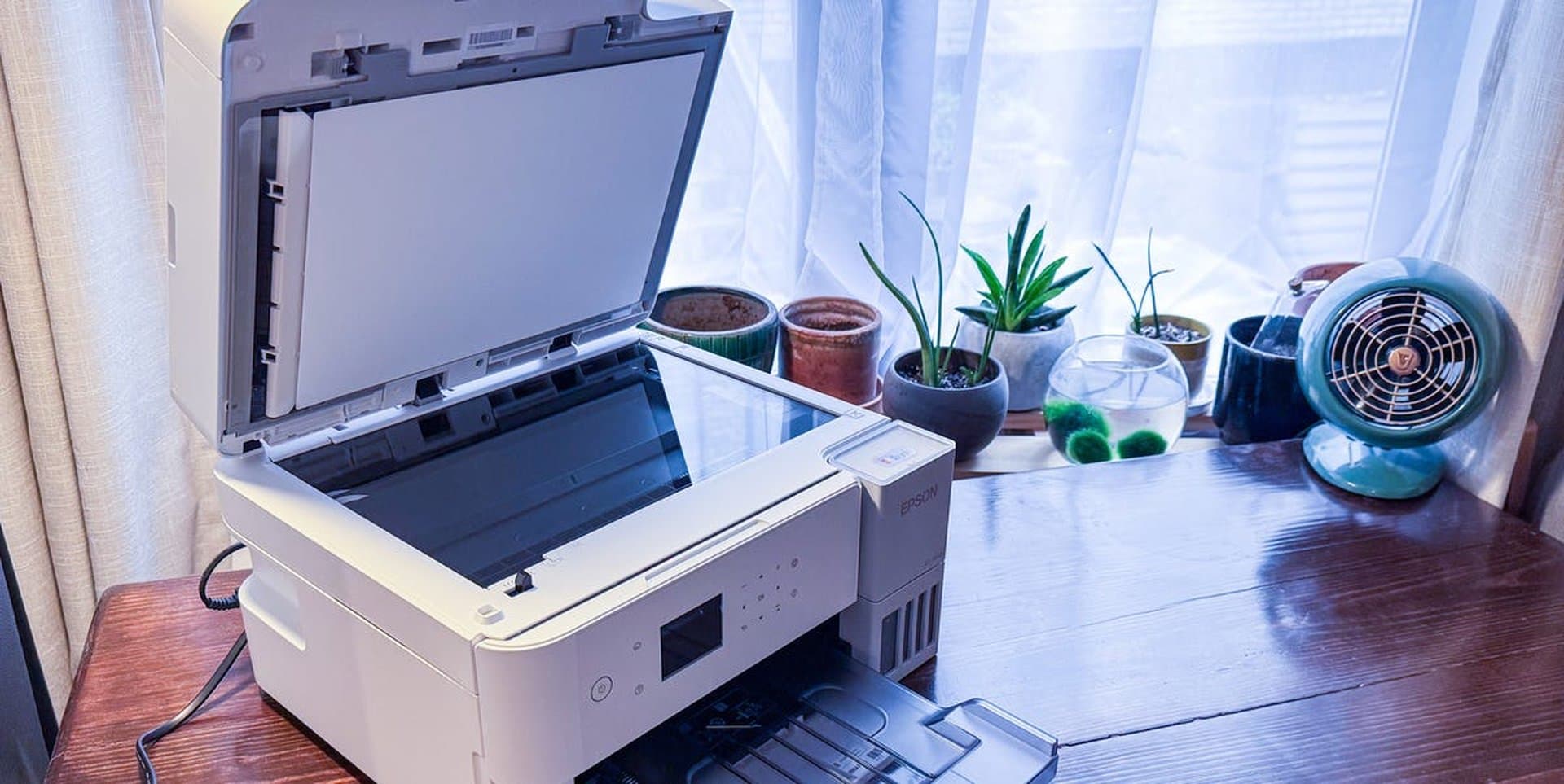
Table Of Content
Source: Popular Mechanics
Category: Hobby
Originally Published: 2025-11-07
Curated: 2025-11-09 07:32
Gear-obsessed editors choose every product we review. We may earn commission if you buy from a link. Why Trust Us?
I’ve found that most people have a paradoxical relationship with printers. On the one hand, the vast majority of people I know mock the idea of owning one, declaring it a relic of the days when we had to print out movie tickets and directions from MapQuest. On the other, I have witnessed many of these very same people desperately scramble to find a printer when they find themselves in need of a paper document.
Printers are complicated machines, and far less important than they were even 10 years ago. And yet, there are still times you really need one, and not having the ability to just pop into your home office, push a button, and print off whatever you need can ruin your day.
But, at some point or another, everybody needs a printer. As more people invest in working from home long-term, they realize you need the ability to print hard copies of documents sometimes. But even at home you will, from time to time, find yourself with an urgent, often unexpected, need to print something – car registration papers, tax forms, garage sale flyers, and the like. If you don’t have a printer, those moments turn into emergencies, sending you on an almost comical quest across town to find one that you can use.
They’re still… finicky. A reputation they’ve earned over the years (and largely deserved), but that doesn’t make them any less essential. Having a printer at home can save you time and money. And, if you heed my recommendations, it doesn’t need to be a sore spot in your tech setup.
Best Printers
Best Overall:
Best Budget:
Best Print Time:
Easy to Use:
Best Inkjet Printer :
How I Tested
I selected a batch of 10 popular printers for testing, after reviewing the product offerings of the four major printer brands – Epson, Brother, Canon, and HP. I aimed to test at least one budget and one high-end printer from each brand, but I picked the lineup based on the manufacturers’ estimated specs, the volume of positive customer feedback, and unique features that could have a big impact on performance.
Most of us will only print a few sheets of paper at a time, or perhaps a small batch of papers every once in a while, not a marathon session of hundreds of sheets. With that in mind, I created a testing protocol for each printer that focused on short bursts of use, rather than pushing the limits of what they can do in a single session.
To test the printing speed of black-and-white documents on each printer, I rattled off five copies of the two-page IRS Taxpayer Bill of Rights and timed how long it took from the moment I pressed “print” to the moment the last paper settled in the printer’s output tray. Then I ran the test again, only this time with double-sided printing turned on.
To test color printing speed, I printed out 10 copies of a Swatchos CMYK color chart, not only to time how long it took, but to observe the clarity and depth of each color. I used the same for all tests on all printers.
There’s more to speed, though. Printers are surprisingly complicated and many have minor mechanical issues from time to time, so I was a tough grader when it came to setup and ease of use. During installation and setup, I rated the process and quick-setup apps. After setup, I checked the onboard screen and controls for brightness and intuitive navigation. Those with touchscreens had to register presses crisply without registering the wrong presses.
For the inkjet printers, I loaded the ink cartridges, too. In the case of the Epson EcoTank printers, which have large, refillable ink reservoirs, I refilled the tanks manually. I was all set to make ease of refilling a criteria, but in practice there was no real variation in ease or difficulty. Despite the four brands’ different cartridges, this one was a wash and didn’t end up coming into play in my ratings.
Lastly, there was build quality. The reason most people hate printers is that cheap ones tend to jam or break easily. If they’re flimsy, adjustable paper guides tend to snap and they fight back when you need to move them. The same goes for flip-out paper catchers, scanner lids, ink cartridge access doors, access panels for clearing paper jams, and paper loading trays. I checked to make sure these adjustable parts felt sturdy, so you can trust that your printer will remain intact for many years.
Full Reviews
Best Overall Brother HL–L3280CDW Color Printer $345 at Amazon $345 at Walmart Credit: Matt Jancer Pros
Cons
Features at a Glance Type Laser Paper capacity 250 sheets Functions Print only Dimensions 15.7 x 15.7 x 10.8 in. Weight 33.9 lb B&W print time 36.5 seconds (10 pages) Color print time 48.5 seconds (10 pages)
The Brother HL-L3280CDW is built like a tank. The paper drawer opens and closes with a solid thunk, the ink access panel lifts open without any flex, and even the paper catchers you can manually flip up to catch printed papers are remarkably solid. I used one of its predecessors, the HL-L3210CDW, for five solid years without a single malfunction. And this model is just as well made: I’d expect it to last for years.
More importantly, it performed very well in all three of the speed tests, as expected with a laser printer, although it wasn’t the fastest on the list. (The is a speed demon.) Also expected, is that this is one of the more expensive printers to operate: It needs four toner cartridges, each of which runs about $75 to $80. They last a long time, but long enough to make them cheaper than an inkjet. (That said, it’s still less expensive than that quick-printing Canon.)
Setup was easy and fairly quick. The bright touchscreen was easy to read in sunlight. I set up the printer on a desk in front of a west-facing window at midday, and I had no problems reading the screen. I’d expected my hot dog fingers would be too big to type comfortably on the 2.7-inch capacitive touchscreen, but I didn’t register any mistypes during my testing. Touchscreens are far quicker to use than buttons, and so I prefer them on printers.
Ease of use is one of the most important qualities in a home printer, in my humble but seasoned experience. The HL-L3280CDW didn’t fight me when I was loading ink cartridges, navigating through the intuitive menus via the touchscreen, or when adjusting the paper guides for different sizes of printer paper.
This Brother is a one-trick pony, though. It prints very well, but it’s not an all-in-one so that’s all it’s going to do. There’s no built-in function of copying, scanning, or faxing. While the print time for 10 color test pages on this Brother and the Brother MFC-J4355DW were close, this one had a delay of 12 seconds when it first received the printing details. Then it began to shoot out the pages much more quickly than the MFC-J4355DW, which earned its quick print time because it began printing immediately.
I would expect the HL-L3280CDW to outpace the MFC-J4355DW more and more as you print additional pages. Like a heavier, more powerful car that takes longer to get going from a stop but has a higher top speed, once the HL-L3280CDW gets underway it prints very quickly.
Best Budget Brother MFC-J1360DW Color Inkjet All-in-One Printer $110 at Amazon $128 at Walmart Credit: Matt Jancer Pros
Cons Features at a Glance Type Inkjet Paper capacity 150 sheets Functions Print/scan/copy Dimensions (W x D x H) 15.4 x 13.5 x 7.2 in. Weight 16.8 lb B&W print time 59.5 seconds (10 pages) Color print time 165.5 seconds (10 pages)
Unlike other sub-$150 budget-tier printers I tested, such as the and , the Brother MFC-J1360DW relies on four separate “CMYK” ink cartridges. (That’s cyan, magenta, yellow and “key,” which is a technical term for black ink.)
CMYK cartridges have a few advantages over the tri-color cartridges used in other budget printers: Most budget printers use a single tri-color cartridge, which sounds cheap and convenient, but forces you to replace all of the ink as soon as any color runs dry. You wind up losing money in the long run. CMYK printers also tend to produce higher-quality color prints, in my experience, too.
It prints as slow as molasses when you compare it to a more expensive printer, but that’s to be expected for something that costs just over $100. This is not going to serve you if you need to print off a large number of sheets at a time – Teachers and professors would do well to aim a little higher, for example. But if you need a cheap, “just in case” printer, the slow speed is a fine tradeoff for the price, and the MFC-J1360DW is a well-made option that performs well for its price point.
Best Print Time Canon imageCLASS MF-665CDW All-in-One Duplex Laser Printer Now 8% Off $487 $450 at Amazon Credit: Matt Jancer Pros
Cons
Features at a Glance Type Laser Paper capacity 250 sheets Functions Print/scan/copy Dimensions (W x D x H) 16.75 x 18.13 x 15.62 in. Weight 41.4 lb B&W print time 33.7 seconds (10 pages) Color print time 33.3 seconds (10 pages)
That’s no moon! It’s a space stat… No, it’s a printer! The Canon MF-665CDW is absolutely enormous. Like the Death Star, but for legal documents. It weighs 48.5 pounds, and might qualify as an emotional support animal if you took it outside. Wrestling it out of the box, then lifting it onto the desk in my office, left me rubbing my back.
But the bulk corresponds to some brawn under the hood. As I mentioned before, the MF-665CDW was the fastest printer I tested, handily beating my best overall pick, the . On larger jobs, I would expect it to outpace my other recommendations even more, based on its 53.8-second double-sided print test time. There was a delay at the start, but once it got going, it spat those sheets out, rapid fire.
The setup’s a bit of a mixed bag. Canon’s “Easy Connection” setup software works only on Windows, so that means you have to set it up through the printer’s screen if you don’t have a PC. But that isn’t as big a problem as it could be: The printer has a large 5-inch color touchscreen that’s easy to see and easy to use (even with big hot dog fingers). Setup through the app wasn’t as easy as with the Brother and Epson printers, but at least Canon’s setup website worked, so it fared better than the HP printers I tested.
Also, it has a scanner, but it’s just so-so, since it only supports 24-bit color. Most scanners, even those that come as part of a printer, support 48-bit color. The scanner lid can accommodate thick, hardcover books, though, so that’s a plus.
You don’t buy this Canon for its scanner, though. If you print off huge quantities of paper regularly and don’t want to spend a quarter of your life waiting on your printer, the Canon MF-665CDW makes sense. Your back, your wallet, and your shelf space will just have to take the hit in the name of pure, blistering speed.
Related Story The 8 Best Modem-Router Combos
Easy to Use Epson EcoTank ET-2980 All-in-One Color Supertank Printer Now 18% Off $330 $270 at Amazon $330 $273 at Walmart Credit: Matt Jancer Pros
Cons
Features at a Glance Type Inkjet Paper capacity 100 sheets Functions Print/copy/scan Dimensions (W x D x H) 14.8 x 13.7 x 7.4 in. (w. paper tray stored) Weight 55.2 seconds (10 pages) B&W print time 117.1 seconds (10 pages)
Brother mostly dominated this latest round of printer testing, but I was surprised and impressed by Epson's distinctive EcoTank printers. While their printing speeds are a bit slow, I was impressed by how easy they were to set up and use. For people who simply hate printers – and there are a lot of you out there – the ET-2980 is as headache-free as any printer I’ve come across.
Epson’s intuitive app went a long way toward making this the easiest printer to use, with simple-to-follow instructions for setup on the printer’s built-in screen. Menus for printer operations and changing settings were exceptionally easy to navigate. Sometimes on complicated machines, such as printers, menus can feel like Russian nesting dolls requiring me to click a bunch of times just to find the settings I want. On the Epson, the screen I wanted was never more than two or three presses away. The screen, too, was crisp and responsive to my touch. It was a real joy to use.
During setup, ink initialization took 11 minutes, but the printer prompted me to set up WiFi in the meantime. It was a clever use of multi-tasking, but the Epson made me use the same WiFi network as my phone, which I found annoying because I use a multi-band router. Aside from that initial hiccup, though, every aspect of using this printer went smoothly.
The EcoTank line is defined by its unique approach to ink: Rather than using swappable cartridges, they have a reservoir that you can refill with liquid ink. You unscrew the cap off the refill bottle, open the ink reservoir access panel on the front of the printer, and plop the inverted ink bottle into a slot, one for each ink color. I was expecting a messy job, but the ink refill bottles are designed to plug into a specially shaped receiver on the reservoir, and only let ink flow once it’s securely in place. I used eight ink refills across two printers, and didn’t spill a single drop. Color me pleasantly surprised.
The ET-2980’s top-feed paper tray is also distinctive. Most feed trays lay flat.There’s nothing wrong with the operation of the ET-2980’s top-feed tray, so long as you don’t mind it looking like you have a paper rooster on your office shelf. It also has four ink level windows that provide a direct line of sight into each color’s ink reservoir. On most other printers, to check the ink levels you have to navigate through the screen’s menus, so it’s easy to miss until you get the low-ink warning: Here, the windows are prominent on the front of the printer. You can’t miss them. They’ll give you plenty of advance warning before you’re out of ink.
Every design decision here just feels a little “different” from the printer norm, but I enjoyed Epson’s attention to detail. It seems like Epson zeroed on the small things that slow down real-world use when printing – checking how much ink you have left and changing settings – and enacted clever solutions to eliminate them. Epson’s competition would be wise to catch on, especially when it comes to the ink level windows.
Related Story The Best Standing Desks and Converters
The Best Inkjet Printer Epson EcoTank ET-3950 All-in-One Color Supertank Printer Now 5% Off $420 $400 at Amazon $420 $420 at Walmart Credit: Matt Jancer Pros
Cons
Features at a Glance Type Inkjet Paper capacity 250 sheets Functions Print/copy/scan Dimensions (W x D x H) 14.8 x 13.7 x 9.4 in. Weight 15.9 lb B&W print time 50.9 seconds (10 pages) Color print time 103.6 seconds (10 pages)
The larger Epson EcoTank ET-3950 prints at nearly the same speed as its smaller sibling, but it’s a more complete, all-in-one printer package, which makes a worthy spend for folks who need both a flatbed and sheet-fed scanner, and/or plan to print large reams of documents.
You can load up to 250 sheets of paper into the 3950, which lets you queue up a large print job and then walk away to do something else. The ET-2980 holds 100 sheets at a time, so this is a distinction that only matters for very large tasks.
It also has a more conventional paper feed tray built horizontally into the bottom of the printer, which allows it to fit more easily on a shelf, where the stack of printer paper sticking out of the ET-2980’s top-feed feed tray made it hard to fit on a shelf in my bookcase.
Both printers have a flatbed scanner, but the ET-3950 also has a sheet-fed scanner. Flatbeds have become the default, because they make it easier to copy pages from books and paper packets that may not lay flat, but sheet-fed scanners work way faster when you need to copy a large number of individual documents. You can load your stack of up to 30 sheets into the scanner tray, and then just hit scan and sit back. It’ll suck the sheets through the sheet-fed scanner one at a time and scan them in.
Like its cheaper sibling, Epson’s ET-3950 is a breeze to use. Setup was simple to follow on the larger, 2.4-inch touchscreen, and following the on-screen directions that pointed me toward an equally clean and sleek app, first-time setup was as easy as I could expect. I also ran into the same issue with connecting my phone and printer to the same WiFi band, but it’s a relatively minor issue. And once set up, I found that these Epson printers are incredibly easy and intuitive to use.
Epson’s build quality is almost right up there with Brother. I found the ET-3950 to be solidly made, with no rattletrap pieces or flimsy parts that made me feel like I’d needed to baby it. I couldn’t say the same for the Canon and HP printers I tested.
While this is not the fastest printer I tested – that honor goes to the Brother InkVestment MFC-J4355DW – it produced pages fast enough: The ET-3950 printed 10 black-and-white pages in 55.2 seconds and 10 color pages in 43.9 seconds, compared to the Epson’s 50.9 seconds and 103.6 seconds, respectively. Ultimately, I prefer the Epson ET-3950 over the Brother because, like ET-2950, it is very easy to set up and use. A few extra seconds is a small price for a pleasant, reliable printing experience.
What to Consider
Inkjet vs. Laser There are two types of printers: inkjets and laser printers. Inkjet printers use cartridges filled with liquid ink, spraying droplets onto the paper to create texts and images. Laser printers don’t use liquid ink; they use black and colored powders called toner. Rather than spraying the ink onto the paper, they use a laser to create an electrostatically charged pattern on a metal drum, which in turn attracts the powder. The drum rolls against the paper, transferring the image-shaped toner onto it to transfer and create your document or photo, and sealed with a heated “fuser” so it doesn’t rub off. Hands down, laser printers win on printing quality and speed. Two of my laser recommendations, the Brother HL-L3280CDW and Canon MF-665CDW, produced test sheets that, far sharper than you can get with any inkjet. And when you print in color, laser printers give you deeper, more vibrant images or graphics. Laser printers are more expensive, though, both when you buy the hardware and when it’s time to replace their toner. Laser printers also tend to be bigger and heavier. That said, though, toner stays fresh much longer than liquid ink: If you don’t use an inkjet for months and months, the ink will dry out. Ultimately, if you regularly print lots of pages, then a laser printer is worth the investment, but for the occasional legal document or schoolwork, going with an inkjet is a reasonable, budget-conscious compromise. If you go with an inkjet, though, go in aware that you will need to use it regularly – say, twice a month – to make sure it’s always ready to go. Printing Quality and Speed Print quality, the ability to generate sharply drawn text and accurate representations of images, is the most obvious way to tell a good printer from a bad one. The amount that it actually matters to you, though, will likely depend on what you’re printing: It’s obviously a major concern if you’re looking to print photos, or need presentation-ready documents with clear graphics. For everybody else, who probably just want legible black-and-white shipping labels and tax forms, it hardly matters. No printer will create a page of text that’s downright blurry or difficult to read, so this is more about aesthetics than function. Printing speed, on the other hand, matters to everyone. And there’s a major distinction in speed between budget printer models and mid-range printer models. Based on my testing, budget-tier printers generally took twice as long to print black-and-white documents, and three times as long to print color pages. Considering the difference in price, though, it’s fair to say that occasional printers should be okay settling for a “fast enough” printer. I’d say it’s only worth the extra $200+ dollars for a fast printer if you regularly print packets of documents. For example, if you’re an educator who frequently prints off hundreds of pages at a time for the classroom, a faster printer could turn a 30-minute print job into a 10- or 15-minute job. That’s a lot of time saved. For those who only print off a few sheets at a time or use their printer infrequently, there’s little point in spending much money to shave a minute or two off your print times. Printer Economics 101 Every time you print a document, you’re “spending” ink and toner that you’ll eventually need to refill. The more you use your printer, the more important it operates efficiently and, by extension, economically. The per-sheet cost of using a printer can vary quite a bit based on quality settings, printer in black and white or color, and whether you print single- or double-sided. Of course, choosing an inkjet or laser printer also makes a difference. When it comes to black-and-white documents, inkjet printers tend to cost about seven to 10 cents per page, while laser printers hover in the range of two to five cents per page. No matter the model, it always costs more to print in color. Printers specific shades by blending a trio number of primary color inks or toners. (Cyan, magenta, and yellow, to be specific.) The cost of printing color sheets leaps to 15 to 25 cents per page for inkjet printers and five to 10 cents per page for laser printers. Laser printers’ lower cost per page belies the fact that toner cartridges are more expensive than inkjet cartridges. Put plainly, restocking your laser printer with fresh toner cartridges will hurt your wallet a lot more in the moment, but you’ll end up paying less over time on toner than on ink cartridges. All-in-One Features Many printers, including most of my recommendations, bill themselves as “all-in-one” printers, meaning they also work as scanners, copiers, and often as fax machines. The question is: Do you really need all that? Copying and scanning can be helpful, especially if you’re trying to digitize family photos. Even so, going for a printer without the extra functionality – like my top pick – can save you some money. Then again, as I said, many of the best printers have these features, so I wouldn’t avoid the all-in-ones entirely. If you see the opportunity to save the money, though, do it. You can always use a free service like Adobe Scan if you have a one-time scanning chore. Ease of Use and Setup There’s a reason the most famous scene of Office Space is of three coworkers taking violent revenge on the office’s printer. These things can be cantankerous and obtuse. The printers I liked best were the ones that just worked without requiring a mail-in degree in computer engineering. The design of your printer’s companion app is also surprisingly crucial. A clear, intuitive app makes setup easy, thanks to clear instructions, and makes the printer painless to use without having to navigate confusing onboard menus. Nobody wants to get into an argument with a difficult printer. The printer will always win.
FAQs
How often do I have to use an inkjet printer to keep the ink from drying up? Most brands advise printing out a test page or a throwaway page every week or two, even if you don’t need to print anything. In practice, I’ve gone a month between print jobs without noticing any performance issues. Any more than that, though, and you’ll start to see small signs of degraded print quality as the ink thickens and clogs the spray nozzles. This could manifest as faded or desaturated colors or slight but noticeable gaps in text. These ink refills are so expensive! Is it OK to Use Cheaper Third-Party Cartridges? It varies by brand, but printer brands want you to use their ink. In fact, many of them insist on it. HP is notorious for using security chips in its ink cartridges so printers can reject anything that doesn’t scan. Certain models of Canon and Epson do this, too. If buying cheap ink is something you’re banking on, I recommend searching for that printer’s online user manual and looking for mention of “cartridge protection” or “chip.” Those signal that the printer probably is designed to only work with official cartridges. Of the four major printer manufacturers, Brother is the only brand that does not take steps to block the use of third-party ink or toner cartridges. Models with refillable ink reservoirs, such as the Epson EcoTank printers in our guide, make it easier to use third-party ink. Personally, I just don't think aftermarket ink is worth the trouble. The official inks I’ve used from all four major printer brands have been quite good, and it’s a bit of a crapshoot as to what kind of color quality you’ll get when you buy third-party ink. If you’re dead set on buying aftermarket ink, look for lots of overwhelmingly positive customer reviews and, well, cross your fingers. What kind of printer paper should I buy? There are standard types of printer paper for both inkjet and laser printers, I recommend picking up the one that matches what you’re working with. Inkjet paper is porous and designed to absorb the ink quickly without smudging. By contrast, laser paper is smooth and less porous so that the toner powder particles adhere to the surface. It’s also designed to withstand the higher heat of laser printers that print large batches of papers. If you buy the wrong kind of paper, you can still use it in your printer. The text won’t look quite as crisp and the edges of graphics won’t be quite as sharp, but it will still be compatible with the printer. There are also basic “copy” and “multi-purpose” papers, which aren’t designed for one type of printer or the other. The text and images printed on it won’t look as sharp on either dedicated inkjet or laser printer, but it’s cheaper. If you just want to print documents, such as shipping labels and contract forms, without caring about maximizing the print quality, then grab a pack of copy or multi-purpose paper. For printing photographs that you plan to frame or put in a scrapbook, it’s worthwhile to splurge on some glossy photo paper. For everything else, general-use paper is fine.
This article was curated from Popular Mechanics. All rights belong to the original publisher.